Canon WFT-E1 Dokumentacja Strona 1
Przeglądaj online lub pobierz Dokumentacja dla Networking Canon WFT-E1. Canon WFT-E1 Specifications Instrukcja obsługi
- Strona / 49
- Spis treści
- BOOKMARKI


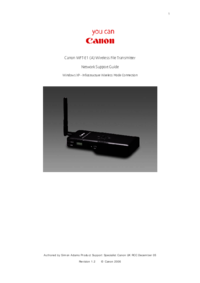
- Network Support Guide 1
- Stage 2 15
- Stage 2A 22
Podsumowanie treści
Authored by Simon Adams Product Support Specialist Canon UK RCC December 05 Revision 1.2 © Canon 2006 1 Canon WFT-E1 (A) Wireless File Tr
Authored by Simon Adams Product Support Specialist Canon UK RCC December 05 Revision 1.2 © Canon 2006 10If you elect to switch on your firewa
Authored by Simon Adams Product Support Specialist Canon UK RCC December 05 Revision 1.2 © Canon 2006 11In the Add a Port screen, enter the n
Authored by Simon Adams Product Support Specialist Canon UK RCC December 05 Revision 1.2 © Canon 2006 12In the Add a Port screen, enter the n
Authored by Simon Adams Product Support Specialist Canon UK RCC December 05 Revision 1.2 © Canon 2006 13You should now have FTP-TCP and FTP-U
Authored by Simon Adams Product Support Specialist Canon UK RCC December 05 Revision 1.2 © Canon 2006 14 Click OK on the Wireless Network Con
Authored by Simon Adams Product Support Specialist Canon UK RCC December 05 Revision 1.2 © Canon 2006 15Stage 2 Setting up your FTP server
Authored by Simon Adams Product Support Specialist Canon UK RCC December 05 Revision 1.2 © Canon 2006 16 Setting up the FTP server on Windows
Authored by Simon Adams Product Support Specialist Canon UK RCC December 05 Revision 1.2 © Canon 2006 17 • Select the Internet Information S
Authored by Simon Adams Product Support Specialist Canon UK RCC December 05 Revision 1.2 © Canon 2006 18 From control panel select Administra
Authored by Simon Adams Product Support Specialist Canon UK RCC December 05 Revision 1.2 © Canon 2006 19Under the FTP Site Tab enter a descri
Authored by Simon Adams Product Support Specialist Canon UK RCC December 05 Revision 1.2 © Canon 2006 2Setting up the WFT-E1A on Windows XP H
Authored by Simon Adams Product Support Specialist Canon UK RCC December 05 Revision 1.2 © Canon 2006 20Under the Security Accounts tab, you
Authored by Simon Adams Product Support Specialist Canon UK RCC December 05 Revision 1.2 © Canon 2006 21Nothing is required on the messages t
Authored by Simon Adams Product Support Specialist Canon UK RCC December 05 Revision 1.2 © Canon 2006 22Stage 2A Setting up your FTP server
Authored by Simon Adams Product Support Specialist Canon UK RCC December 05 Revision 1.2 © Canon 2006 23 Stage 2A – Setting up Filezilla FTP
Authored by Simon Adams Product Support Specialist Canon UK RCC December 05 Revision 1.2 © Canon 2006 24
Authored by Simon Adams Product Support Specialist Canon UK RCC December 05 Revision 1.2 © Canon 2006 25
Authored by Simon Adams Product Support Specialist Canon UK RCC December 05 Revision 1.2 © Canon 2006 26
Authored by Simon Adams Product Support Specialist Canon UK RCC December 05 Revision 1.2 © Canon 2006 27Once you have Filezilla FTP Server in
Authored by Simon Adams Product Support Specialist Canon UK RCC December 05 Revision 1.2 © Canon 2006 28
Authored by Simon Adams Product Support Specialist Canon UK RCC December 05 Revision 1.2 © Canon 2006 29
Authored by Simon Adams Product Support Specialist Canon UK RCC December 05 Revision 1.2 © Canon 2006 3 On your desktop, right click on the
Authored by Simon Adams Product Support Specialist Canon UK RCC December 05 Revision 1.2 © Canon 2006 30
Authored by Simon Adams Product Support Specialist Canon UK RCC December 05 Revision 1.2 © Canon 2006 31
Authored by Simon Adams Product Support Specialist Canon UK RCC December 05 Revision 1.2 © Canon 2006 32
Authored by Simon Adams Product Support Specialist Canon UK RCC December 05 Revision 1.2 © Canon 2006 33
Authored by Simon Adams Product Support Specialist Canon UK RCC December 05 Revision 1.2 © Canon 2006 34
Authored by Simon Adams Product Support Specialist Canon UK RCC December 05 Revision 1.2 © Canon 2006 35Once all the server settings have bee
Authored by Simon Adams Product Support Specialist Canon UK RCC December 05 Revision 1.2 © Canon 2006 36 In the General section of the Users
Authored by Simon Adams Product Support Specialist Canon UK RCC December 05 Revision 1.2 © Canon 2006 37Back in the General section of the Us
Authored by Simon Adams Product Support Specialist Canon UK RCC December 05 Revision 1.2 © Canon 2006 38 Before the next step, create a folde
Authored by Simon Adams Product Support Specialist Canon UK RCC December 05 Revision 1.2 © Canon 2006 39 Now we have defined our destinatio
Authored by Simon Adams Product Support Specialist Canon UK RCC December 05 Revision 1.2 © Canon 2006 4Right Click on your Wireless Network C
Authored by Simon Adams Product Support Specialist Canon UK RCC December 05 Revision 1.2 © Canon 2006 40 Select the speed limit page and sele
Authored by Simon Adams Product Support Specialist Canon UK RCC December 05 Revision 1.2 © Canon 2006 41 The IP Filter page should be left bl
Authored by Simon Adams Product Support Specialist Canon UK RCC December 05 Revision 1.2 © Canon 2006 42 From the main server window click on
Authored by Simon Adams Product Support Specialist Canon UK RCC December 05 Revision 1.2 © Canon 2006 43Stage 3 – Setting up the WFT-E1A usin
Authored by Simon Adams Product Support Specialist Canon UK RCC December 05 Revision 1.2 © Canon 2006 44Select the FTP settings tab, here we
Authored by Simon Adams Product Support Specialist Canon UK RCC December 05 Revision 1.2 © Canon 2006 45Now select the Wireless LAN settings
Authored by Simon Adams Product Support Specialist Canon UK RCC December 05 Revision 1.2 © Canon 2006 46To find out the name of your PC so yo
Authored by Simon Adams Product Support Specialist Canon UK RCC December 05 Revision 1.2 © Canon 2006 47On the Computer Name tab of My Comput
Authored by Simon Adams Product Support Specialist Canon UK RCC December 05 Revision 1.2 © Canon 2006 48After taking a picture you should see
Authored by Simon Adams Product Support Specialist Canon UK RCC December 05 Revision 1.2 © Canon 2006 49
Authored by Simon Adams Product Support Specialist Canon UK RCC December 05 Revision 1.2 © Canon 2006 5This brings up the Wireless Network Co
Authored by Simon Adams Product Support Specialist Canon UK RCC December 05 Revision 1.2 © Canon 2006 6We will need to create a static IP add
Authored by Simon Adams Product Support Specialist Canon UK RCC December 05 Revision 1.2 © Canon 2006 7 You will now need to tell your networ
Authored by Simon Adams Product Support Specialist Canon UK RCC December 05 Revision 1.2 © Canon 2006 8This will return you to the Wireless N
Authored by Simon Adams Product Support Specialist Canon UK RCC December 05 Revision 1.2 © Canon 2006 9On the Windows Firewall screen, if you
Więcej dokumentów dla Networking Canon WFT-E1
Powiązane produkty i podręczniki dla Networking Canon WFT-E1
 (19 strony)
 (76 strony)
 (50 strony)
(11 strony)
(50 strony)
(11 strony)
 (796 strony)
(220 strony)
(796 strony)
(220 strony)
© 2020, manymanuals.pl. Wszelkie prawa zastrzeżone. | 0.052 s |
 Manymanuals.com
 Manymanuals.de
 Manymanuals.fr
 Manymanuals.it
 Manymanuals.pl
 Manymanuals.cz
 Manymanuals.es
 Manymanuals-pt.com
Komentarze do niniejszej Instrukcji